
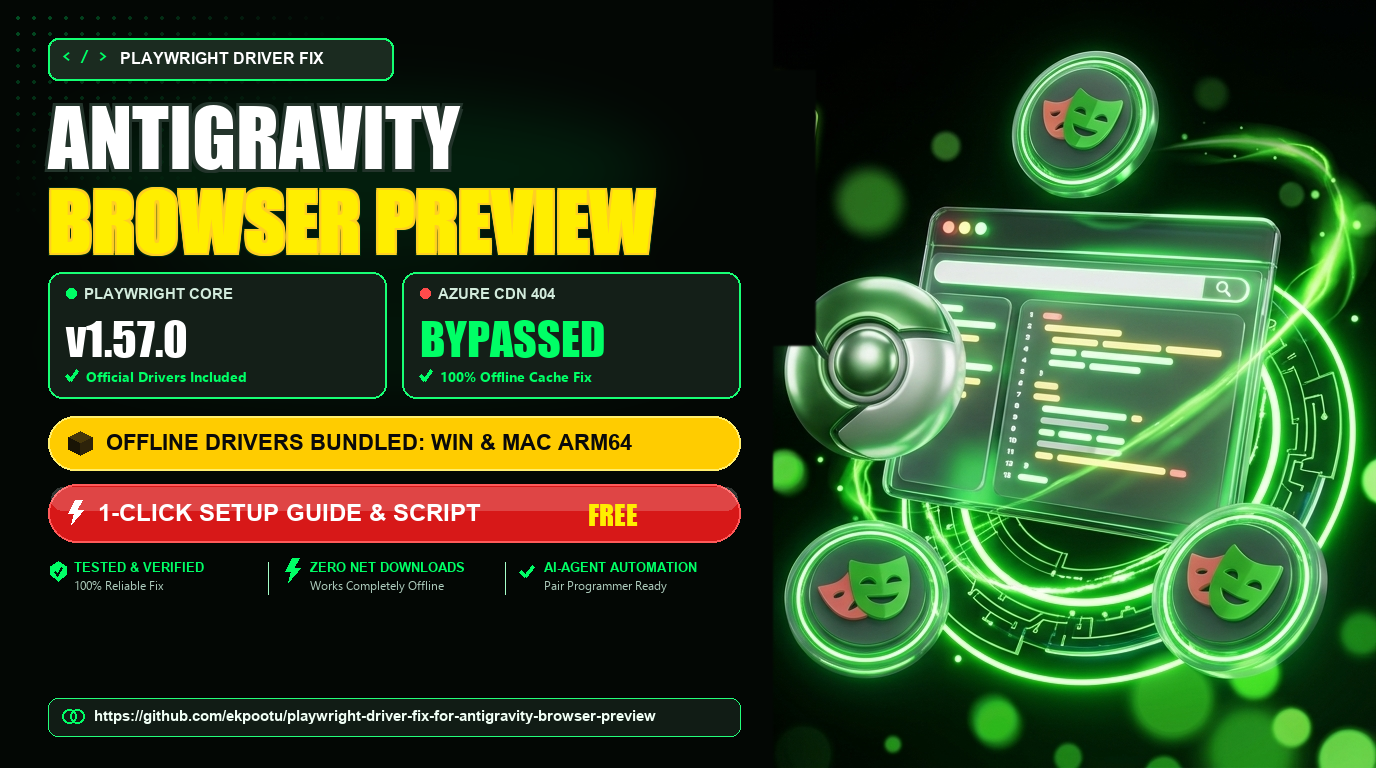
⚡ Quick Summary (TL;DR)
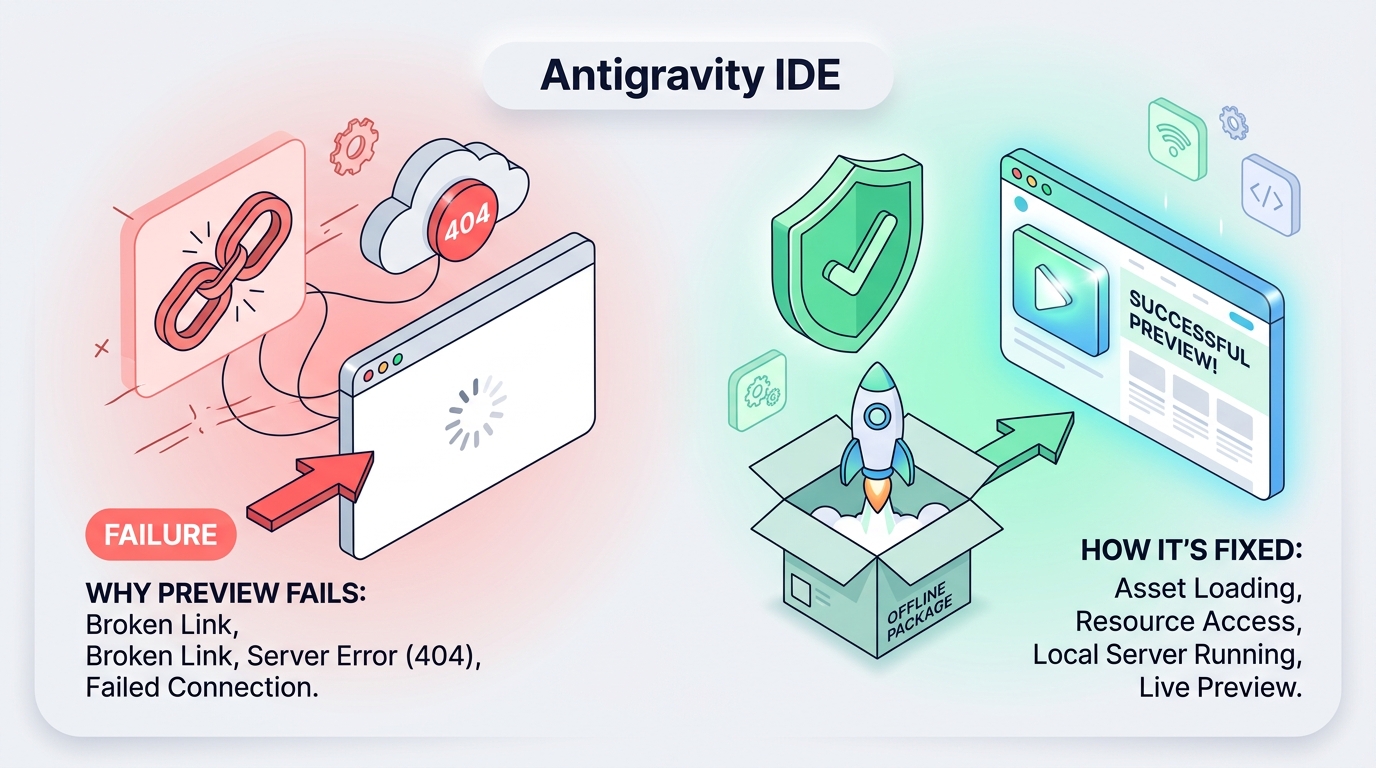
- The Problem: Fresh installs of Google Antigravity IDE fail to open the built-in browser preview or get stuck on a forever-spinning loading wheel.
- The Cause: The preview tool tries to download an automation driver from an old, permanently retired Microsoft web link, hitting a silent
404 Not Founderror. - The Fix: A 1-click script that installs verified, bundled offline drivers into your local profile cache without relying on dead web links.
- Compatibility: Tested and working on Windows, macOS (Apple Silicon M1–M4 & Intel), and Linux.
1. Introduction: The Frustrating Blank Screen
You just downloaded and installed Antigravity IDE, the exciting AI-powered code editor. You fired up a project, created a cool new web page or application, and excitedly clicked the Browser Preview button to see your live work.
And then… nothing happens. Or worse, the preview panel opens up to an endless loading spinner that never finishes.
If you’re experiencing this, take heart: your code is completely fine, and your computer is not at fault. This is a common setup glitch that affects new installations. In this step-by-step walkthrough, we’ll explain why it happens in plain English and show you how to fix it in under two minutes.
2. Why Does the Browser Preview Fail? (In Plain English)
To let you see and interact with websites right inside the editor, Antigravity IDE relies on a popular browser automation tool known as Playwright (specifically, an engine written in Go called playwright-go).
When you trigger the Browser Preview for the first time:
- Antigravity inspects your machine’s local user cache to check if the required Playwright driver files are already installed.
- If the files are missing, it attempts to download them automatically in the background.
- Here is where the breakdown occurs: The program attempts to download the package from an old Microsoft server:
GET https://playwright.azureedge.net/builds/driver/playwright-1.57.0-... HTTP/1.1 404 Not Found - Because Microsoft has retired and shut down that specific download server, the request immediately fails with a 404 Not Found error.
- The download fails, the cache folder stays completely empty, and the browser preview is unable to launch.
💡 The Simple Solution
Instead of relying on a broken download link that no longer exists, we simply drop the official, verified driver files directly into the exact folder where Antigravity is looking. When the editor starts, it sees the driver is already present, skips the broken download, and launches the browser preview immediately!
3. The 3-Step Walkthrough: Get Running in Under 2 Minutes
Thanks to the open-source community repository playwright-driver-fix-for-antigravity-browser-preview created by Dr. Ekpo Otu, everything you need is already packaged together.
Method 1: Windows Users (1-Click PowerShell Script)
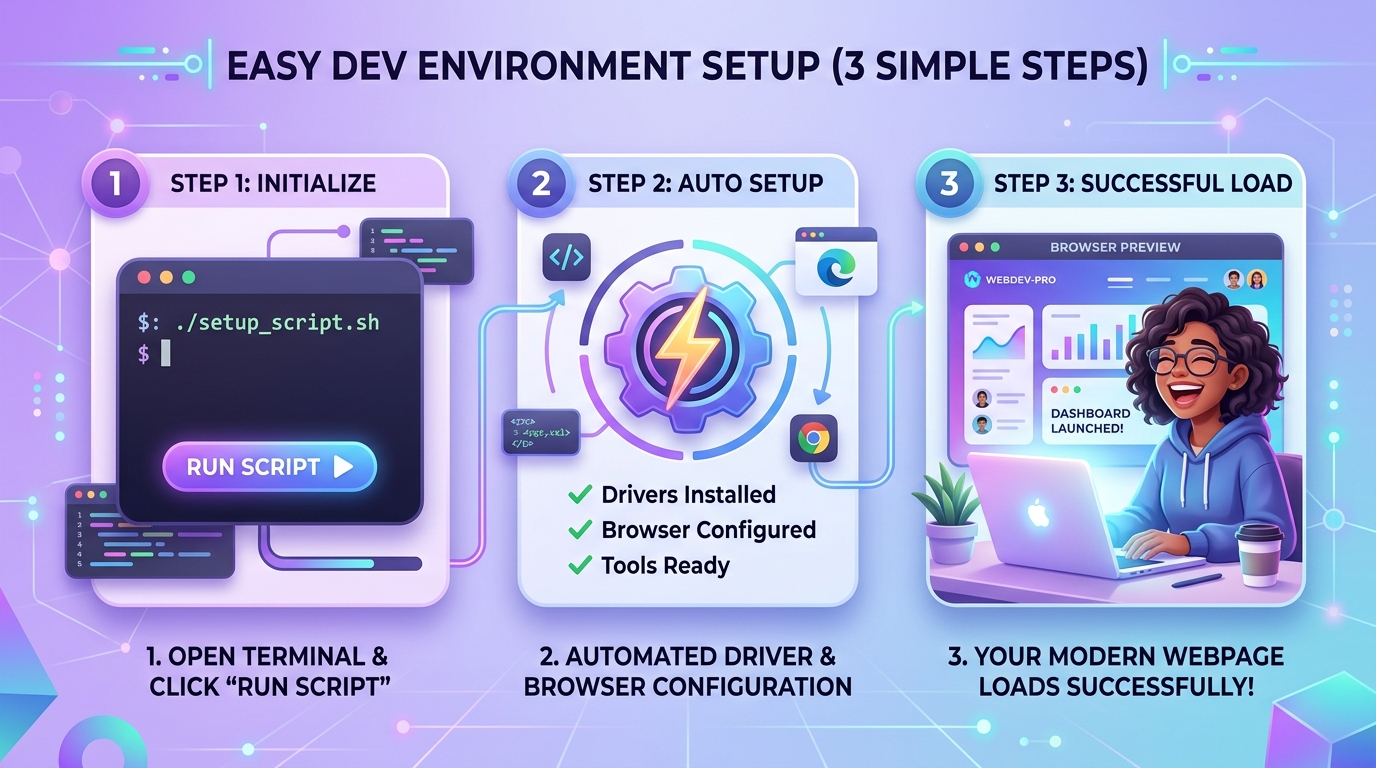
- Download or Clone the Repository:
Open PowerShell and run:
(Don’t use Git? No problem! Click the green “Code” button on GitHub and choose “Download ZIP”, then extract it anywhere on your PC).git clone https://github.com/ekpootu/playwright-driver-fix-for-antigravity-browser-preview.git cd playwright-driver-fix-for-antigravity-browser-preview - Run the Automated Fix Script:
The script will safely extract the offline driver into your profile (.\Fix-PlaywrightDriver.ps1%LOCALAPPDATA%\ms-playwright-go\1.57.0) and set up the Chromium browser engine. - Restart Antigravity IDE:
Close all open Antigravity IDE windows and restart the app. Click Browser Preview—your website will pop up immediately!
Method 2: macOS & Linux Users (1-Click Bash Script)
- Clone or Download the Repository:
Open your Terminal and enter:git clone https://github.com/ekpootu/playwright-driver-fix-for-antigravity-browser-preview.git cd playwright-driver-fix-for-antigravity-browser-preview - Make Executable and Run:
This handles Apple Silicon (M1, M2, M3, M4) and Linux configurations automatically.chmod +x Fix-PlaywrightDriver.sh ./Fix-PlaywrightDriver.sh - Restart the Editor:
Fully quit Antigravity IDE (Cmd + Qon Mac) and reopen it. Your live preview is ready!
4. Prefer AI? Let Your AI Pair Programmer Fix It!
If you love using AI pair programming inside Antigravity IDE, your built-in AI assistant can do all this work for you without you ever touching terminal commands.
Copy & Paste This Prompt to Your AI Agent:
“Please use the solution from https://github.com/ekpootu/playwright-driver-fix-for-antigravity-browser-preview.git to fix my Antigravity browser preview failure, populate the local Playwright Go cache, install Chromium, and verify the browser launch.”
The AI will autonomously clone the repository, run the verified setup routines, install Chromium, and let you know when you can restart the IDE.
5. Manual Setup (For Those Who Love Hands-On Control)
If you prefer to configure everything manually without running any automated scripts, here is the quick reference chart:
| Action | Windows Commands | macOS / Linux Commands |
|---|---|---|
| 1. Create Cache Folder | New-Item -ItemType Directory -Force "$env:LOCALAPPDATA\ms-playwright-go\1.57.0" |
mkdir -p "$HOME/Library/Caches/ms-playwright-go/1.57.0" |
| 2. Extract Driver Archive | Extract playwright-1.57.0-win32_x64.zip into the cache folder above |
Extract playwright-1.57.0-mac-arm64.zip into the cache folder above |
| 3. Set Permissions | (Handled automatically by Windows) | chmod +x node |
| 4. Install Chromium | & "$env:LOCALAPPDATA\ms-playwright-go\1.57.0\node.exe" "$env:LOCALAPPDATA\ms-playwright-go\1.57.0\package\cli.js" install chromium chromium-headless-shell |
"$HOME/Library/Caches/ms-playwright-go/1.57.0/node" "$HOME/Library/Caches/ms-playwright-go/1.57.0/package/cli.js" install chromium chromium-headless-shell |
| 5. Restart IDE | Close & Reopen Antigravity IDE | Quit (Cmd+Q) & Reopen Antigravity IDE |
6. Pro-Tip: Preflight Automation for CI/CD and Team Workstations
If you manage developer machines or automated CI/CD agent containers, you can include the script in your preflight validation check. The preflight check confirms driver health non-destructively and returns exit code 0 when ready:
# Windows Preflight Check & Port Collision Reset:
.\Fix-PlaywrightDriver.ps1 -Preflight
.\Fix-PlaywrightDriver.ps1 -Force -ClearPortCollision

# macOS / Linux Preflight Check:
./Fix-PlaywrightDriver.sh --preflight
This completely eliminates developer onboarding friction and prevents mysterious port 9222 CDP collision errors.
7. Frequently Asked Questions (FAQ)
Q: Is this workaround safe to use on my computer?
A: Yes, absolutely. The driver archives included in the repository are the official, unaltered driver packages from Microsoft Playwright release v1.57.0. The repository lists their SHA-256 cryptographic checksums so you can independently verify their authenticity.
Q: Will I need to repeat this process every time I start my PC?
A: No. You only need to run this fix once per machine. Once the files reside in your local user cache folder, Antigravity IDE detects them permanently across all sessions.
Q: Does this replace my regular Chrome or Edge browser?
A: Not at all. It only installs an isolated, headless Chromium binary specifically designated for Antigravity’s internal editor preview window. None of your personal browsing history, cookies, or default browser settings are touched.
8. Wrapping Up
There is nothing more frustrating than encountering a bug before you even begin writing code. With this 1-click offline fix, the Antigravity IDE browser preview goes from broken to blazing fast in seconds.
Happy coding, and enjoy previewing your applications smoothly!
🔗 Helpful Links & Community
- GitHub Repository: ekpootu/playwright-driver-fix-for-antigravity-browser-preview
- Author Portfolio: Dr. Ekpo Otu’s Official Website
- Connect & Follow: Dr. Ekpo Otu on Linktree

